> ## Documentation Index
> Fetch the complete documentation index at: https://docs-staging-chore-events-autoupdate.mintlify.site/llms.txt
> Use this file to discover all available pages before exploring further.

> Learn how to configure an update policy form using Forms for Actions for users to review and accept new terms of service or consent updates.

# Use Cases: Configure an update policy form using Forms

<Card title="Before you start">
  1. Create a [Machine-to-Machine Application](/docs/get-started/auth0-overview/create-applications/machine-to-machine-apps) with the following scopes enabled:

  * `read:users`
  * `update:users`
  * `create:users`
  * `read:users_app_metadata`
  * `update:users_app_metadata`
  * `create:users_app_metadata`

  2. Add a [Vault connection](/docs/customize/forms/vault) using the M2M application credentials.
</Card>

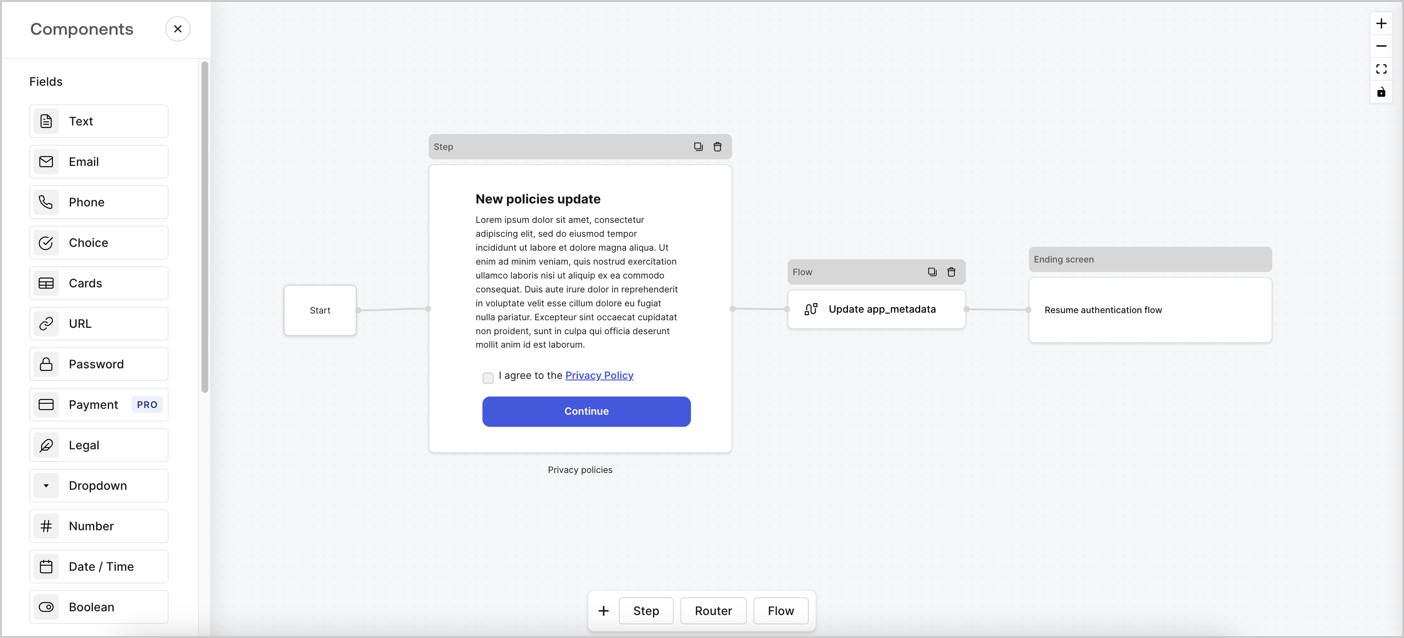
Forms for Actions allows you to create custom privacy policies flows and store the consent under the `app_metadata` object.
<Frame>
  <img src="https://mintcdn.com/docs-staging-chore-events-autoupdate/98W2_Y-L23YJndAZ/docs/images/cdy7uua7fh8z/6i68dMvHDTijfRmSgN1x8Q/ad900e7d4c0fb34645921435472b8684/privavy-policy-form.png?fit=max&auto=format&n=98W2_Y-L23YJndAZ&q=85&s=4468bcc5195e667598b883ab947c5240" alt="Dashboard > Actions > Forms > Privacy policy use case" data-og-width="1404" width="1404" data-og-height="638" height="638" data-path="docs/images/cdy7uua7fh8z/6i68dMvHDTijfRmSgN1x8Q/ad900e7d4c0fb34645921435472b8684/privavy-policy-form.png" data-optimize="true" data-opv="3" srcset="https://mintcdn.com/docs-staging-chore-events-autoupdate/98W2_Y-L23YJndAZ/docs/images/cdy7uua7fh8z/6i68dMvHDTijfRmSgN1x8Q/ad900e7d4c0fb34645921435472b8684/privavy-policy-form.png?w=280&fit=max&auto=format&n=98W2_Y-L23YJndAZ&q=85&s=bcf59b4fc40f38e5527db0bb6ec55686 280w, https://mintcdn.com/docs-staging-chore-events-autoupdate/98W2_Y-L23YJndAZ/docs/images/cdy7uua7fh8z/6i68dMvHDTijfRmSgN1x8Q/ad900e7d4c0fb34645921435472b8684/privavy-policy-form.png?w=560&fit=max&auto=format&n=98W2_Y-L23YJndAZ&q=85&s=726be192b4ad162ac885f32d2996acf4 560w, https://mintcdn.com/docs-staging-chore-events-autoupdate/98W2_Y-L23YJndAZ/docs/images/cdy7uua7fh8z/6i68dMvHDTijfRmSgN1x8Q/ad900e7d4c0fb34645921435472b8684/privavy-policy-form.png?w=840&fit=max&auto=format&n=98W2_Y-L23YJndAZ&q=85&s=5532f1b15b88ff562377cb5c2e5729df 840w, https://mintcdn.com/docs-staging-chore-events-autoupdate/98W2_Y-L23YJndAZ/docs/images/cdy7uua7fh8z/6i68dMvHDTijfRmSgN1x8Q/ad900e7d4c0fb34645921435472b8684/privavy-policy-form.png?w=1100&fit=max&auto=format&n=98W2_Y-L23YJndAZ&q=85&s=2307fa17fe6e5c8466143faba67f9a2d 1100w, https://mintcdn.com/docs-staging-chore-events-autoupdate/98W2_Y-L23YJndAZ/docs/images/cdy7uua7fh8z/6i68dMvHDTijfRmSgN1x8Q/ad900e7d4c0fb34645921435472b8684/privavy-policy-form.png?w=1650&fit=max&auto=format&n=98W2_Y-L23YJndAZ&q=85&s=683632d742a9f8f542dc20d87655e172 1650w, https://mintcdn.com/docs-staging-chore-events-autoupdate/98W2_Y-L23YJndAZ/docs/images/cdy7uua7fh8z/6i68dMvHDTijfRmSgN1x8Q/ad900e7d4c0fb34645921435472b8684/privavy-policy-form.png?w=2500&fit=max&auto=format&n=98W2_Y-L23YJndAZ&q=85&s=eca0b7f457200ba92d0ec912d5265677 2500w" />
</Frame>

The sections below outline how you can create an Update Policy form using nodes and flows, along with steps for adding your form to a [Post Login](/docs/customize/actions/explore-triggers/signup-and-login-triggers/login-trigger) Action.

## Create a form from scratch

Follow these steps to create a form to gather information:

1. Open the Form editor by selecting **Auth0 Dashboard > Actions > Forms.**
2. Select **Create Form** > **Start from scratch**.

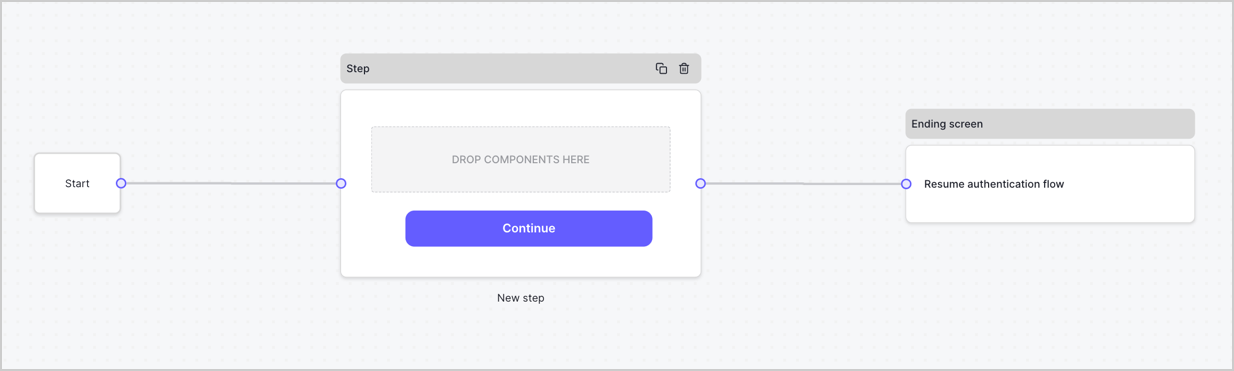
By default, a new form contains a Start node, a Step node, and an Ending screen node.
<Frame>
  <img src="https://mintcdn.com/docs-staging-chore-events-autoupdate/pcHJQgtevaBQ-IbW/docs/images/cdy7uua7fh8z/2TZ9jSjgEcARFpULI6hz4R/a4319a1bd482f2ee5cc23100fdb2f42c/New-form-Forms-for-action-use-case.png?fit=max&auto=format&n=pcHJQgtevaBQ-IbW&q=85&s=bd8664d5a8f3adb9ba9e9521277b9f80" alt="Dashboard > Forms > Use Cases > Form" data-og-width="1234" width="1234" data-og-height="371" height="371" data-path="docs/images/cdy7uua7fh8z/2TZ9jSjgEcARFpULI6hz4R/a4319a1bd482f2ee5cc23100fdb2f42c/New-form-Forms-for-action-use-case.png" data-optimize="true" data-opv="3" srcset="https://mintcdn.com/docs-staging-chore-events-autoupdate/pcHJQgtevaBQ-IbW/docs/images/cdy7uua7fh8z/2TZ9jSjgEcARFpULI6hz4R/a4319a1bd482f2ee5cc23100fdb2f42c/New-form-Forms-for-action-use-case.png?w=280&fit=max&auto=format&n=pcHJQgtevaBQ-IbW&q=85&s=1f67f1665ad460b78d69554dc09707a5 280w, https://mintcdn.com/docs-staging-chore-events-autoupdate/pcHJQgtevaBQ-IbW/docs/images/cdy7uua7fh8z/2TZ9jSjgEcARFpULI6hz4R/a4319a1bd482f2ee5cc23100fdb2f42c/New-form-Forms-for-action-use-case.png?w=560&fit=max&auto=format&n=pcHJQgtevaBQ-IbW&q=85&s=4e8b0a823a5f0fe57d8748ad22978ebe 560w, https://mintcdn.com/docs-staging-chore-events-autoupdate/pcHJQgtevaBQ-IbW/docs/images/cdy7uua7fh8z/2TZ9jSjgEcARFpULI6hz4R/a4319a1bd482f2ee5cc23100fdb2f42c/New-form-Forms-for-action-use-case.png?w=840&fit=max&auto=format&n=pcHJQgtevaBQ-IbW&q=85&s=42429091e06a2e8644efd4d7935db466 840w, https://mintcdn.com/docs-staging-chore-events-autoupdate/pcHJQgtevaBQ-IbW/docs/images/cdy7uua7fh8z/2TZ9jSjgEcARFpULI6hz4R/a4319a1bd482f2ee5cc23100fdb2f42c/New-form-Forms-for-action-use-case.png?w=1100&fit=max&auto=format&n=pcHJQgtevaBQ-IbW&q=85&s=b0480b23d7ca03bfaf71dc70c591c400 1100w, https://mintcdn.com/docs-staging-chore-events-autoupdate/pcHJQgtevaBQ-IbW/docs/images/cdy7uua7fh8z/2TZ9jSjgEcARFpULI6hz4R/a4319a1bd482f2ee5cc23100fdb2f42c/New-form-Forms-for-action-use-case.png?w=1650&fit=max&auto=format&n=pcHJQgtevaBQ-IbW&q=85&s=0bdeb7d60588f07348c50371749cee67 1650w, https://mintcdn.com/docs-staging-chore-events-autoupdate/pcHJQgtevaBQ-IbW/docs/images/cdy7uua7fh8z/2TZ9jSjgEcARFpULI6hz4R/a4319a1bd482f2ee5cc23100fdb2f42c/New-form-Forms-for-action-use-case.png?w=2500&fit=max&auto=format&n=pcHJQgtevaBQ-IbW&q=85&s=dc02272d7692f30582e3b169bfe165b4 2500w" />
</Frame>

### Configure the Step node

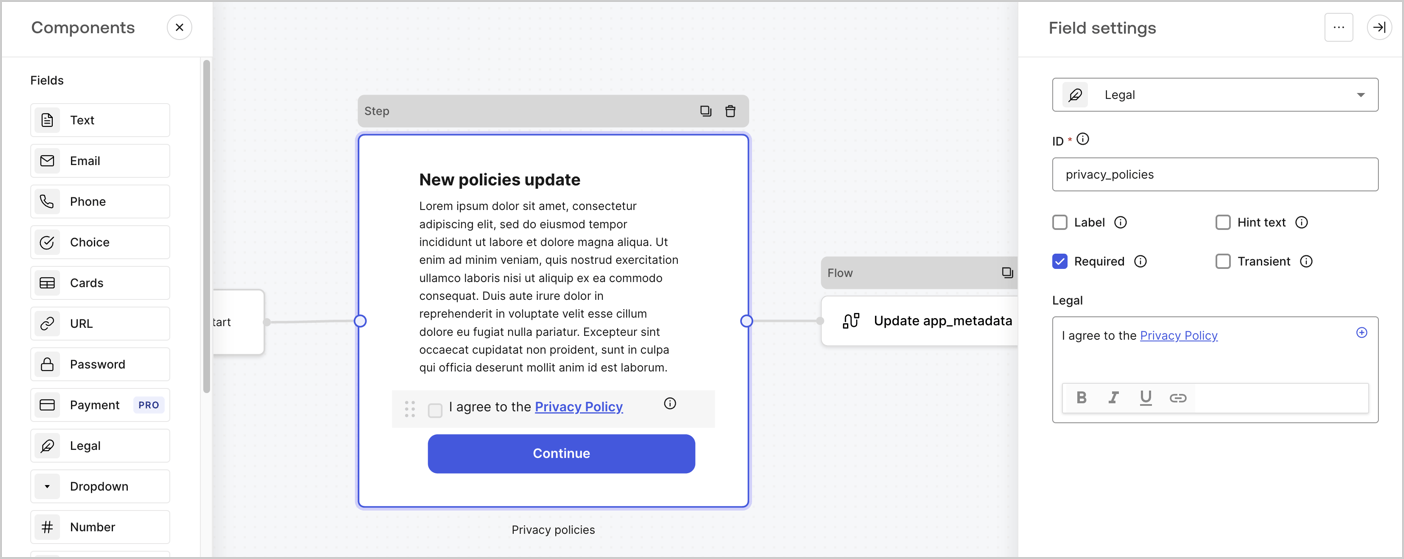
The Step node is the graphical interface visible to users. Add [Fields](/docs/customize/forms/nodes-and-components) to the Step node to collect the new agreement acceptance value by following these steps:

1. Drag a **Rich text** field from the **Components menu** into the **Step** node.

   * **Rich text**: Enter a description of your privacy policies updates.
   * Select **Save**.
2. Drag a **Legal** field into the **Step** node.

   * **ID**: Enter `privacy_policies`.
   * **Required**: Enable the checkbox.
   * **Legal**: Enter `I agree to the Privacy Policy`.
   * Select **Save**.
3. Select **Publish** to save.
<Frame>
  <img src="https://mintcdn.com/docs-staging-chore-events-autoupdate/12G97kMYRYfQpTHS/docs/images/cdy7uua7fh8z/59zFFjQjAnjogkc2QGIqqJ/0ad66b1b636544122aa4e65968b76c2c/privacy-policy-step-node.png?fit=max&auto=format&n=12G97kMYRYfQpTHS&q=85&s=e3efd07280f768c4f3cd55fbea64d70b" alt="Dashboard > Actions > Forms > Use case privacy policy step node" data-og-width="1404" width="1404" data-og-height="559" height="559" data-path="docs/images/cdy7uua7fh8z/59zFFjQjAnjogkc2QGIqqJ/0ad66b1b636544122aa4e65968b76c2c/privacy-policy-step-node.png" data-optimize="true" data-opv="3" srcset="https://mintcdn.com/docs-staging-chore-events-autoupdate/12G97kMYRYfQpTHS/docs/images/cdy7uua7fh8z/59zFFjQjAnjogkc2QGIqqJ/0ad66b1b636544122aa4e65968b76c2c/privacy-policy-step-node.png?w=280&fit=max&auto=format&n=12G97kMYRYfQpTHS&q=85&s=e6e2c7b4e93a01b2f7976c0067b261ce 280w, https://mintcdn.com/docs-staging-chore-events-autoupdate/12G97kMYRYfQpTHS/docs/images/cdy7uua7fh8z/59zFFjQjAnjogkc2QGIqqJ/0ad66b1b636544122aa4e65968b76c2c/privacy-policy-step-node.png?w=560&fit=max&auto=format&n=12G97kMYRYfQpTHS&q=85&s=162aa185936495dd5e3f6df985a87298 560w, https://mintcdn.com/docs-staging-chore-events-autoupdate/12G97kMYRYfQpTHS/docs/images/cdy7uua7fh8z/59zFFjQjAnjogkc2QGIqqJ/0ad66b1b636544122aa4e65968b76c2c/privacy-policy-step-node.png?w=840&fit=max&auto=format&n=12G97kMYRYfQpTHS&q=85&s=1f65970d48f59a0254a34c486d3d008a 840w, https://mintcdn.com/docs-staging-chore-events-autoupdate/12G97kMYRYfQpTHS/docs/images/cdy7uua7fh8z/59zFFjQjAnjogkc2QGIqqJ/0ad66b1b636544122aa4e65968b76c2c/privacy-policy-step-node.png?w=1100&fit=max&auto=format&n=12G97kMYRYfQpTHS&q=85&s=fc052743b6d6877a6a24c1874594128e 1100w, https://mintcdn.com/docs-staging-chore-events-autoupdate/12G97kMYRYfQpTHS/docs/images/cdy7uua7fh8z/59zFFjQjAnjogkc2QGIqqJ/0ad66b1b636544122aa4e65968b76c2c/privacy-policy-step-node.png?w=1650&fit=max&auto=format&n=12G97kMYRYfQpTHS&q=85&s=3212aaf463bd25a5a28688f4348bd9fc 1650w, https://mintcdn.com/docs-staging-chore-events-autoupdate/12G97kMYRYfQpTHS/docs/images/cdy7uua7fh8z/59zFFjQjAnjogkc2QGIqqJ/0ad66b1b636544122aa4e65968b76c2c/privacy-policy-step-node.png?w=2500&fit=max&auto=format&n=12G97kMYRYfQpTHS&q=85&s=76109e9297f1433c40c879d7d1073717 2500w" />
</Frame>

### Configure the Flow node

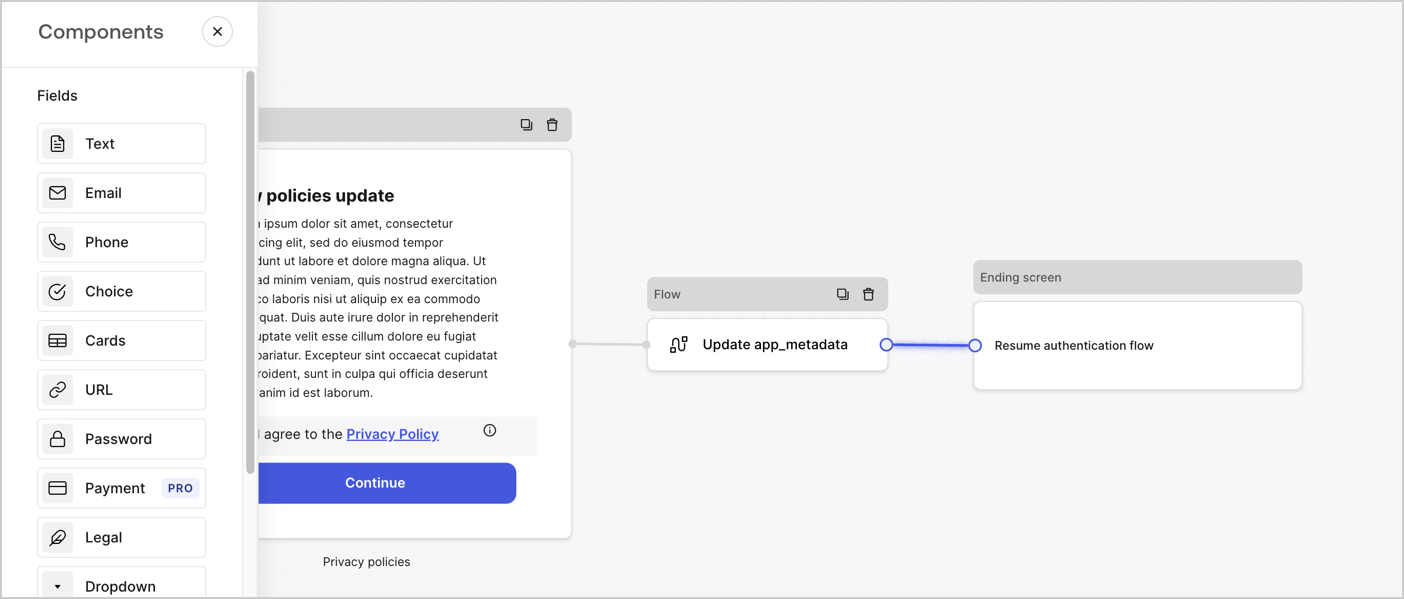
Add a **Flow** node after the **Step** node to update the `app_metadata` and resume the authentication flow by following these steps:

1. Select **Flow** from the bottom of the Form editor.
2. Remove the existing link between the **Step** and **Ending Screen** nodes.
3. Select the new **Flow** > **Click to add a flow** > **Create a new flow.**

   * Enter `Update app_metadata` in the **Name** field.
   * Select **Create**.
   * Select **Save**.
4. Link the **Flow** node to the **Step** and **Ending Screen** nodes as pictured below.
5. Select **Publish** to save.
<Frame>
  <img src="https://mintcdn.com/docs-staging-chore-events-autoupdate/98W2_Y-L23YJndAZ/docs/images/cdy7uua7fh8z/6YIkzm7SrpM9LW76AXuRzh/353c518fe82bbaa440836da1d83596d6/link-policies.png?fit=max&auto=format&n=98W2_Y-L23YJndAZ&q=85&s=c2ce7f013bbd728817ffb3f685559a5c" alt="Dashboard > Actions > Forms > Form" data-og-width="1404" width="1404" data-og-height="599" height="599" data-path="docs/images/cdy7uua7fh8z/6YIkzm7SrpM9LW76AXuRzh/353c518fe82bbaa440836da1d83596d6/link-policies.png" data-optimize="true" data-opv="3" srcset="https://mintcdn.com/docs-staging-chore-events-autoupdate/98W2_Y-L23YJndAZ/docs/images/cdy7uua7fh8z/6YIkzm7SrpM9LW76AXuRzh/353c518fe82bbaa440836da1d83596d6/link-policies.png?w=280&fit=max&auto=format&n=98W2_Y-L23YJndAZ&q=85&s=5848a0dd6e922810eb32d274e502323a 280w, https://mintcdn.com/docs-staging-chore-events-autoupdate/98W2_Y-L23YJndAZ/docs/images/cdy7uua7fh8z/6YIkzm7SrpM9LW76AXuRzh/353c518fe82bbaa440836da1d83596d6/link-policies.png?w=560&fit=max&auto=format&n=98W2_Y-L23YJndAZ&q=85&s=5d5fcad19db8cc4f2d86db84be2c2a0a 560w, https://mintcdn.com/docs-staging-chore-events-autoupdate/98W2_Y-L23YJndAZ/docs/images/cdy7uua7fh8z/6YIkzm7SrpM9LW76AXuRzh/353c518fe82bbaa440836da1d83596d6/link-policies.png?w=840&fit=max&auto=format&n=98W2_Y-L23YJndAZ&q=85&s=f87de6de9a9abbc5f747dbfaff8241e9 840w, https://mintcdn.com/docs-staging-chore-events-autoupdate/98W2_Y-L23YJndAZ/docs/images/cdy7uua7fh8z/6YIkzm7SrpM9LW76AXuRzh/353c518fe82bbaa440836da1d83596d6/link-policies.png?w=1100&fit=max&auto=format&n=98W2_Y-L23YJndAZ&q=85&s=ed229389fc19695ece5ae53ed9d5be10 1100w, https://mintcdn.com/docs-staging-chore-events-autoupdate/98W2_Y-L23YJndAZ/docs/images/cdy7uua7fh8z/6YIkzm7SrpM9LW76AXuRzh/353c518fe82bbaa440836da1d83596d6/link-policies.png?w=1650&fit=max&auto=format&n=98W2_Y-L23YJndAZ&q=85&s=46f4dc1417f26827ca860c11de61d5ab 1650w, https://mintcdn.com/docs-staging-chore-events-autoupdate/98W2_Y-L23YJndAZ/docs/images/cdy7uua7fh8z/6YIkzm7SrpM9LW76AXuRzh/353c518fe82bbaa440836da1d83596d6/link-policies.png?w=2500&fit=max&auto=format&n=98W2_Y-L23YJndAZ&q=85&s=67a7515e9a626043fd394cbc286b8a65 2500w" />
</Frame>

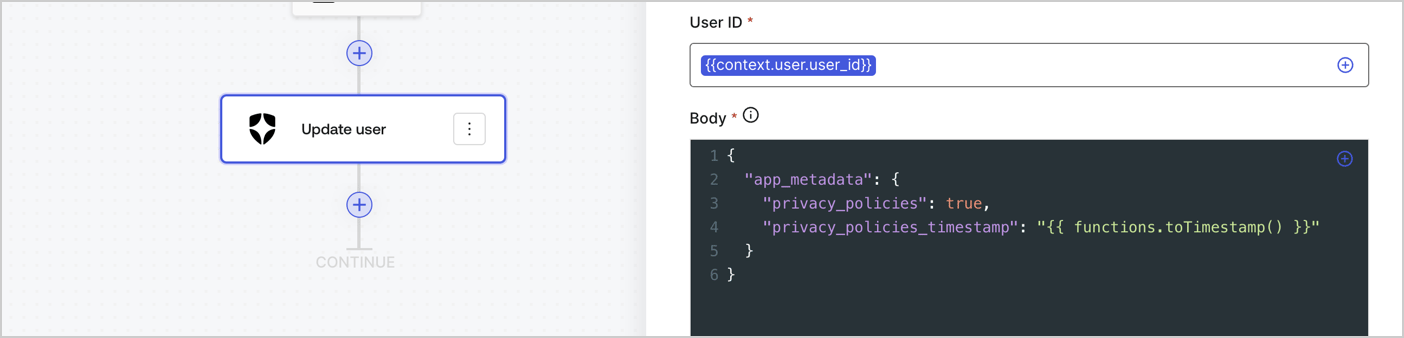
Add an Auth0 Update user action to the flow by following these steps:

1. Select the **Flow** **Update app\_metadata** > **Edit flow** to open the Flow editor in a new tab.
2. Below the StartAction, select the **+** icon to add an **Update user** action. Complete the fields below, then select **Save** to continue.

   * **Connection**: Select from the dropdown the Vault connection to your M2M application.

   * **User ID**: Enter `{{context.user.user_id}}`.

   * **Body**: Copy and paste the following code to update the app\_metadata with the privacy\_policies and privacy\_policies\_timestamp properties.

     ```text lines theme={null}
     {
       "app_metadata": {
         "privacy_policies": true,
         "privacy_policies_timestamp": "{{ functions.toTimestamp() }}"
       }
     }
     ```

   * Select **Save**.
3. Select **Publish** to save.
<Frame>
  <img src="https://mintcdn.com/docs-staging-chore-events-autoupdate/c6Tbxku74LPACg53/docs/images/cdy7uua7fh8z/CvMNIwWrOUwaFW4X3G28p/1fb70ae57a20749d9ffaaba8dc0b7e26/update-user-privacy.png?fit=max&auto=format&n=c6Tbxku74LPACg53&q=85&s=69787de6a1b115a953f51666a62ae1e4" alt="Dashboard > Actions > Forms > User case privacy policy code" data-og-width="1404" width="1404" data-og-height="338" height="338" data-path="docs/images/cdy7uua7fh8z/CvMNIwWrOUwaFW4X3G28p/1fb70ae57a20749d9ffaaba8dc0b7e26/update-user-privacy.png" data-optimize="true" data-opv="3" srcset="https://mintcdn.com/docs-staging-chore-events-autoupdate/c6Tbxku74LPACg53/docs/images/cdy7uua7fh8z/CvMNIwWrOUwaFW4X3G28p/1fb70ae57a20749d9ffaaba8dc0b7e26/update-user-privacy.png?w=280&fit=max&auto=format&n=c6Tbxku74LPACg53&q=85&s=59719f666cfbe2d124f579ba1a07e326 280w, https://mintcdn.com/docs-staging-chore-events-autoupdate/c6Tbxku74LPACg53/docs/images/cdy7uua7fh8z/CvMNIwWrOUwaFW4X3G28p/1fb70ae57a20749d9ffaaba8dc0b7e26/update-user-privacy.png?w=560&fit=max&auto=format&n=c6Tbxku74LPACg53&q=85&s=fe087a25344ec4385c471e9d6aef1263 560w, https://mintcdn.com/docs-staging-chore-events-autoupdate/c6Tbxku74LPACg53/docs/images/cdy7uua7fh8z/CvMNIwWrOUwaFW4X3G28p/1fb70ae57a20749d9ffaaba8dc0b7e26/update-user-privacy.png?w=840&fit=max&auto=format&n=c6Tbxku74LPACg53&q=85&s=d24a52fe5f29cf4d2bd952ce152704b9 840w, https://mintcdn.com/docs-staging-chore-events-autoupdate/c6Tbxku74LPACg53/docs/images/cdy7uua7fh8z/CvMNIwWrOUwaFW4X3G28p/1fb70ae57a20749d9ffaaba8dc0b7e26/update-user-privacy.png?w=1100&fit=max&auto=format&n=c6Tbxku74LPACg53&q=85&s=8debde86aac22bbdc9983c30cf7df2b2 1100w, https://mintcdn.com/docs-staging-chore-events-autoupdate/c6Tbxku74LPACg53/docs/images/cdy7uua7fh8z/CvMNIwWrOUwaFW4X3G28p/1fb70ae57a20749d9ffaaba8dc0b7e26/update-user-privacy.png?w=1650&fit=max&auto=format&n=c6Tbxku74LPACg53&q=85&s=a4b317a3d0431ebccf817ac821023bf6 1650w, https://mintcdn.com/docs-staging-chore-events-autoupdate/c6Tbxku74LPACg53/docs/images/cdy7uua7fh8z/CvMNIwWrOUwaFW4X3G28p/1fb70ae57a20749d9ffaaba8dc0b7e26/update-user-privacy.png?w=2500&fit=max&auto=format&n=c6Tbxku74LPACg53&q=85&s=fd5f8411650432dc812ef821dc93ac02 2500w" />
</Frame>

<Callout icon="file-lines" color="#0EA5E9" iconType="regular">
  The flow **Update app\_metadata** adds a `privacy_policies true` value to the app`_metadata` object and also generates a timestamp with a [helper function.](/docs/customize/forms/variables)
</Callout>

## Retrieve the form render code

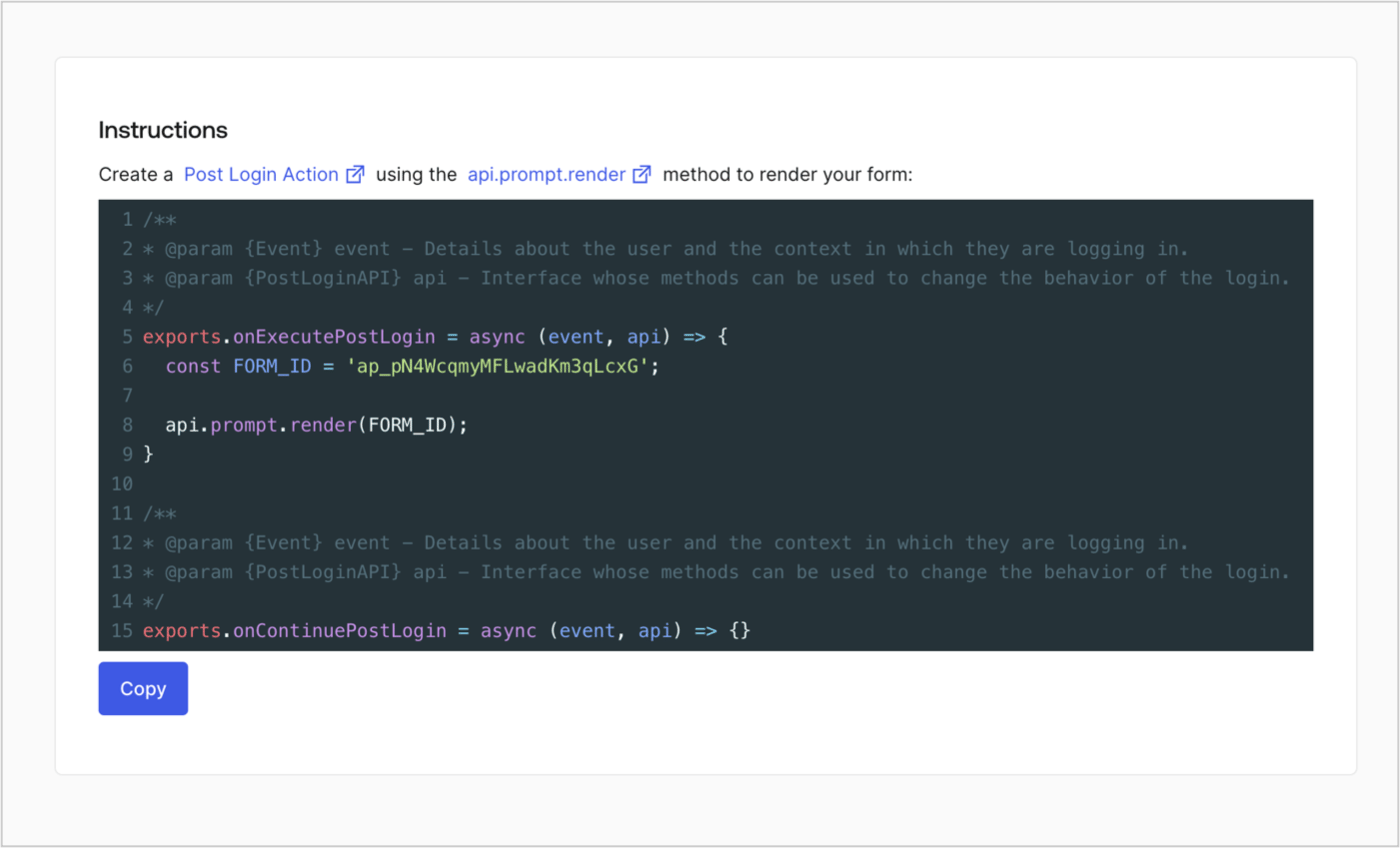
Retrieve your form render code to visually render the form with a custom Post Login Action by following these steps:

* From the Form editor, select **`<> Render`**.
* Select **Copy**.
<Frame>
  <img src="https://mintcdn.com/docs-staging-chore-events-autoupdate/ofS79UqxQk3qmkew/docs/images/cdy7uua7fh8z/2EIUzc539sq9lwoTKbjoJv/496a864c0fc44a782c9cadca119dbfb0/embed.png?fit=max&auto=format&n=ofS79UqxQk3qmkew&q=85&s=9fd0679dec5921abac0e90f621e15faf" alt="Dashboard > Actions > Forms > Form > Embed" data-og-width="1400" width="1400" data-og-height="848" height="848" data-path="docs/images/cdy7uua7fh8z/2EIUzc539sq9lwoTKbjoJv/496a864c0fc44a782c9cadca119dbfb0/embed.png" data-optimize="true" data-opv="3" srcset="https://mintcdn.com/docs-staging-chore-events-autoupdate/ofS79UqxQk3qmkew/docs/images/cdy7uua7fh8z/2EIUzc539sq9lwoTKbjoJv/496a864c0fc44a782c9cadca119dbfb0/embed.png?w=280&fit=max&auto=format&n=ofS79UqxQk3qmkew&q=85&s=5bf75940cd97d5aa00c15e6ff0730584 280w, https://mintcdn.com/docs-staging-chore-events-autoupdate/ofS79UqxQk3qmkew/docs/images/cdy7uua7fh8z/2EIUzc539sq9lwoTKbjoJv/496a864c0fc44a782c9cadca119dbfb0/embed.png?w=560&fit=max&auto=format&n=ofS79UqxQk3qmkew&q=85&s=8f296fc938f8170e772f26f7ba52e086 560w, https://mintcdn.com/docs-staging-chore-events-autoupdate/ofS79UqxQk3qmkew/docs/images/cdy7uua7fh8z/2EIUzc539sq9lwoTKbjoJv/496a864c0fc44a782c9cadca119dbfb0/embed.png?w=840&fit=max&auto=format&n=ofS79UqxQk3qmkew&q=85&s=60e3398905191e456e8b8841f822ce4d 840w, https://mintcdn.com/docs-staging-chore-events-autoupdate/ofS79UqxQk3qmkew/docs/images/cdy7uua7fh8z/2EIUzc539sq9lwoTKbjoJv/496a864c0fc44a782c9cadca119dbfb0/embed.png?w=1100&fit=max&auto=format&n=ofS79UqxQk3qmkew&q=85&s=9c207a2345bdfdcecc98c99c701ea2ff 1100w, https://mintcdn.com/docs-staging-chore-events-autoupdate/ofS79UqxQk3qmkew/docs/images/cdy7uua7fh8z/2EIUzc539sq9lwoTKbjoJv/496a864c0fc44a782c9cadca119dbfb0/embed.png?w=1650&fit=max&auto=format&n=ofS79UqxQk3qmkew&q=85&s=209b65b5c965e6628dfd74de9a1e9b7d 1650w, https://mintcdn.com/docs-staging-chore-events-autoupdate/ofS79UqxQk3qmkew/docs/images/cdy7uua7fh8z/2EIUzc539sq9lwoTKbjoJv/496a864c0fc44a782c9cadca119dbfb0/embed.png?w=2500&fit=max&auto=format&n=ofS79UqxQk3qmkew&q=85&s=021604a2a7eecc4d8e4f3b9f1c7a3c06 2500w" />
</Frame>

## Create a Post Login Action

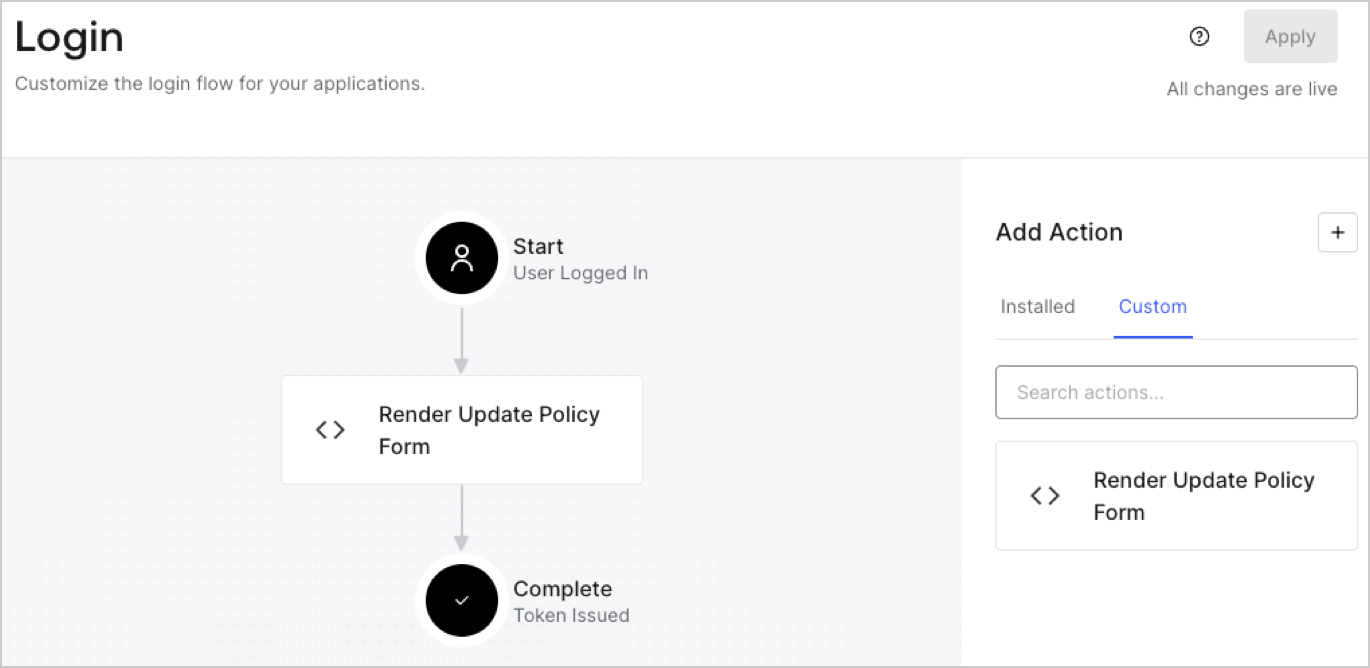
Create a post-login Action to render your form by following these steps:

1. Navigate to **Auth0 Dashboard > Actions > Flows > Login.**
2. Select the **+** icon and Select **Build from scratch**:

   * **Name**: Enter `Render Update Policy Form`.
   * **Trigger**: Select `Login / Post Login`.
   * **Runtime**: Select the recommended version.
3. Select **Create**.

To configure the post-login Action:

1. Delete the existing code from the Code editor.
2. Paste the form render code into the Code editor.
3. Edit the code to define the conditional logic that will render the form.

   ```javascript lines theme={null}
   /**
   * @param {Event} event - Details about the user and the context in which they are logging in.
   * @param {PostLoginAPI} api - Interface whose methods can be used to change the behavior of the login.
   */
   exports.onExecutePostLogin = async (event, api) => {
     const FORM_ID = 'REPLACE_WITH_YOUR_FORM_ID';

     if (event.user.app_metadata.privacy_policies !== true) {
       api.prompt.render(FORM_ID);
     }
   }

   exports.onContinuePostLogin = async (event, api) => { }
   ```

   <Callout icon="file-lines" color="#0EA5E9" iconType="regular">
     The example code above will render the form when a user is missing the app metadata `privacy_policies` property.
   </Callout>
4. Select **Deploy.**
5. Drag and Drop the **Render Update Policy Form** Action to the **Login** flow.
   <Frame>
     <img src="https://mintcdn.com/docs-staging-chore-events-autoupdate/1kUZvJUL5DAi0-Zz/docs/images/cdy7uua7fh8z/5TOwDgevZsBqd7yZynUYWU/41ca909dc3007aed4f40ff794a05efa5/postlogin.png?fit=max&auto=format&n=1kUZvJUL5DAi0-Zz&q=85&s=6b60f897ec5e92295f275cb6fc42a617" alt="Dashboard > Forms > Use Case > Render update policy form login action" data-og-width="1370" width="1370" data-og-height="668" height="668" data-path="docs/images/cdy7uua7fh8z/5TOwDgevZsBqd7yZynUYWU/41ca909dc3007aed4f40ff794a05efa5/postlogin.png" data-optimize="true" data-opv="3" srcset="https://mintcdn.com/docs-staging-chore-events-autoupdate/1kUZvJUL5DAi0-Zz/docs/images/cdy7uua7fh8z/5TOwDgevZsBqd7yZynUYWU/41ca909dc3007aed4f40ff794a05efa5/postlogin.png?w=280&fit=max&auto=format&n=1kUZvJUL5DAi0-Zz&q=85&s=c74242535504b1a28cc953e786724adf 280w, https://mintcdn.com/docs-staging-chore-events-autoupdate/1kUZvJUL5DAi0-Zz/docs/images/cdy7uua7fh8z/5TOwDgevZsBqd7yZynUYWU/41ca909dc3007aed4f40ff794a05efa5/postlogin.png?w=560&fit=max&auto=format&n=1kUZvJUL5DAi0-Zz&q=85&s=2d76361ce7e7b4cfdf4e4ebc83f906d7 560w, https://mintcdn.com/docs-staging-chore-events-autoupdate/1kUZvJUL5DAi0-Zz/docs/images/cdy7uua7fh8z/5TOwDgevZsBqd7yZynUYWU/41ca909dc3007aed4f40ff794a05efa5/postlogin.png?w=840&fit=max&auto=format&n=1kUZvJUL5DAi0-Zz&q=85&s=49d3d431a8b971b92dcb5dbed06a1432 840w, https://mintcdn.com/docs-staging-chore-events-autoupdate/1kUZvJUL5DAi0-Zz/docs/images/cdy7uua7fh8z/5TOwDgevZsBqd7yZynUYWU/41ca909dc3007aed4f40ff794a05efa5/postlogin.png?w=1100&fit=max&auto=format&n=1kUZvJUL5DAi0-Zz&q=85&s=5f5c2860f387e77d0affa5301cb6ecf5 1100w, https://mintcdn.com/docs-staging-chore-events-autoupdate/1kUZvJUL5DAi0-Zz/docs/images/cdy7uua7fh8z/5TOwDgevZsBqd7yZynUYWU/41ca909dc3007aed4f40ff794a05efa5/postlogin.png?w=1650&fit=max&auto=format&n=1kUZvJUL5DAi0-Zz&q=85&s=745c01b78659c0395bd77b2ed5aedb5e 1650w, https://mintcdn.com/docs-staging-chore-events-autoupdate/1kUZvJUL5DAi0-Zz/docs/images/cdy7uua7fh8z/5TOwDgevZsBqd7yZynUYWU/41ca909dc3007aed4f40ff794a05efa5/postlogin.png?w=2500&fit=max&auto=format&n=1kUZvJUL5DAi0-Zz&q=85&s=1bbb237ade1adfffff496eaf558f1856 2500w" />
   </Frame>
6. Select **Apply.**

### Test implementation

Test the implementation by following these steps:

1. Log in with an existing user whose app`_metadata` attribute `privacy_policies` does not have a value.
2. The post-login Action in the Login flow will render the form and prompt for acceptance.
3. Select **Auth0 Dashboard > User Management > Users,** locate the user and verify that the `app_metadata` attribute `privacy_policies` contains a `true` value and a timestamp.
